Create a paper hinário
Preparing an hinário for printing used to be a headache: messy margins, awkward page breaks, and formatting chaos.
Turn any hinário into a print-ready PDF:
- Four pages on each A4 sheet for an A6 booklet, or an A4 booklet
- In the right order for cutting and stacking, or in sequence
- With a wider margin on the binding side, or uniform
- Even and odd pages as separate PDFs for double-sided printing, or everything together
- With or without cut marks
The Hinário Editor creates clean, print-ready layouts directly on your computer.
Everything stays on your device - nothing is uploaded.
How it works
-
Get the hinário.
- From the O Livro app: open an hinário, tap the three-dots menu in the footer, and export the .lvr file. Drop it here.
- From a PDF of the hinário: drop the PDF here. The editor turns it into a
.lvrfile; check it against the PDF before you print (if it does not work well). - Or start a new hinário in the editor and type it in.
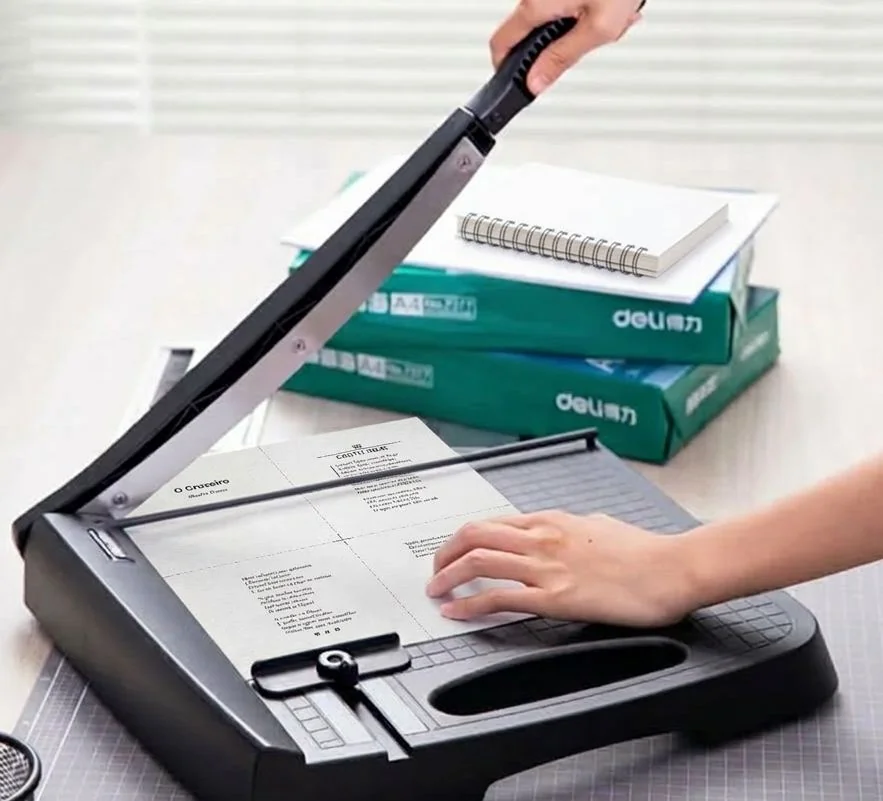
- Set it up. Choose an A6 booklet or A4 pages. Consider if you want to cut the output and how: Cut & Stack is the way to go if you have a cutter that is strong enough for the number of sheets.
- Print. Print directly, or save a PDF from the print dialog and take it to a print shop. A mistake in a hino? Correct it in the editor and print again.
Print on a computer: phone browsers cannot lay out the pages reliably.
Every option, from cut marks to manual duplex, is explained in the printing guide.