Print your hinário - User Guide
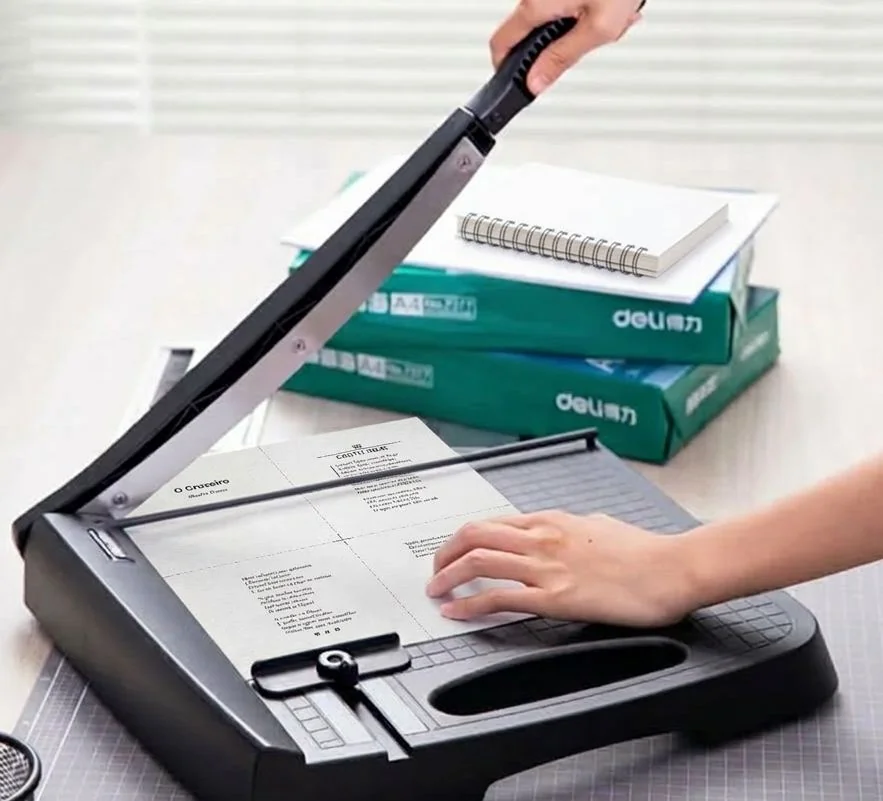
The Print your hinário tool helps you
turn your hinário export file (the project’s .lvr file) into a
print-ready layout and then produce a PDF you can
cut, stack, and bind. Get your .lvr file from the O Livro app, at the three dots menu below every hinário, or create it from an hinario PDF.
The goal is simple: you should get pages that look the same in the app preview and in your final PDF, with clean spacing and correct ordering.
What you create with this tool
- A6 hinário (small booklet): your PDF contains A4 sheets that each hold four A6 pages. These A6 pages are meant to be cut and then folded/stacked into a booklet.
- A4 hinário (one logical page per sheet): your PDF contains one logical page per A4 sheet.
On pages where an hino continues on the next page, the layout includes a small continuation cue near the bottom-right corner.
Please fill the whitespace
The cover intentionally has plenty of whitespace, fill it with a picture of your choice. Also, before printing, you may want to add decorations to hino pages. Give it a more personal touch, the tool is just for the bare minimum.
Options (and what they mean for you)
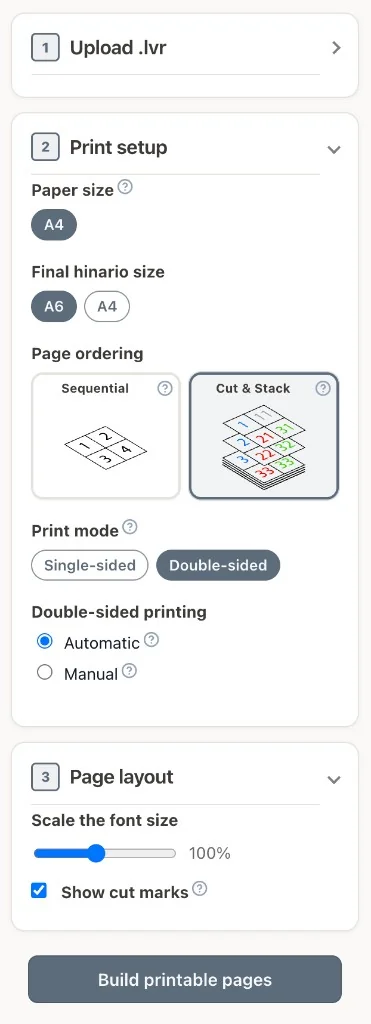
Final hinário size: A6 or A4
- A6 is for booklet-style printing (smaller pages).
- A4 is for single-sheet pages.
Note: when you print, the paper sheets are always A4. For A6 booklets, that’s how you end up with four A6 pages per sheet.
Paper ordering: Sequential vs Cut & Stack (A6 only)
These options control the order of the pages on the printed sheets.
-
Sequential
- Best if you cut manually with scissors.
- You will need to sort the cut pages yourself (manual sorting).
-
Cut & Stack
- Best if you use a paper cutter and want to sort faster.
- You cut the sheet into sections, then stack them in the order: top left, top right, bottom left, bottom right.
Print mode: single-sided vs double-sided (duplex)
- Single-sided: you get only the front pages.
- Double-sided: your printer prints on both sides.
The tool supports a duplex approach where margins are mirrored appropriately for binding (see margins below).
Duplex method: Automatic vs Manual
If your printer cannot handle duplex reliably, choose Manual.
- Automatic: print normally on both sides.
- Manual: you print in two passes: print odd-numbered pages first, then rotate the paper stack and print even-numbered pages.
If manual duplex is selected, there’s also a “current print pass” selector so you can keep track of which side/pages you are printing right now:
- Odd pass: all front sides / right-hand pages
- Even pass: all back sides / left-hand pages
Show cut marks (A6 only)
If enabled, cut marks show you exactly where to cut on A6 pages:
- A cross near the middle
- 1 cm ticks near the edges
If you use a paper cutter that aligns the blade for you, you can omit these marks.
Scale the font size (Preview + final layout)
Use the font scale slider to make the printed text slightly larger or smaller. This is especially useful when you need more/less content to fit on the page while keeping the layout consistent.
Quick workflow
- Build printable pages: the app generates the page layout and shows you a preview of the final result.
- Print / Save as PDF: the app opens your browser’s print dialog so you can save the booklet as a PDF.
- Compare with the preview: the final check before you start cutting and binding.
The PDF layout and margins (simple and practical)
The tool uses fixed spacing values for the page content area. These values are designed to keep text clear from edges and (for duplex) away from the binding area.
Simplex (one-sided) margins
- Top: 18 mm
- Bottom: 12 mm
- Left: 22 mm
- Right: 12 mm
Duplex (two-sided) margins
- Top: 18 mm
- Bottom: 12 mm
- Outside: 14 mm
- Inside (binding/gutter): 22 mm
In duplex mode, “inside” means the side that goes into the binding/gutter. The tool makes sure the inside margin is larger so the text stays readable after binding.
How it works (in your browser) and why browser print settings matter
This software runs in your browser. When you build the printable pages, it creates the page layout inside the app preview, and when you choose Print / Save as PDF, it relies on your browser’s print dialog to render the final PDF.
Different browsers (and sometimes different browser versions) handle printing details like margins, headers/footers, scaling, and paper sizing differently. That is why it’s important to use the correct print settings in the dialog—otherwise the PDF can end up cropped, scaled, or shifted compared to the preview.
Browser behavior at a glance
- Works well: Chrome and Edge (roughly Chrome/Edge 120+).
- Works with limitations: Safari 17+ (may add an extra white/blank page at the end).
- Not supported: Firefox.
- Not recommended / not supported: older Chrome/Edge (<120) and Safari (<17), and very old browsers (for example Internet Explorer).
Before you generate the final PDF (important reminder)
When you click Print / Save as PDF, follow these points in your print dialog:
- Hide any footer or header
- Set the paper to A4
- Set Scaling to 100%
Then: Save as PDF (don’t print directly) and compare the generated PDF with the app preview.